Screenshots in a carousel
Put each step of a flow on its own slide, with its marks and notes, and the reader pages through them in place or zoomed.
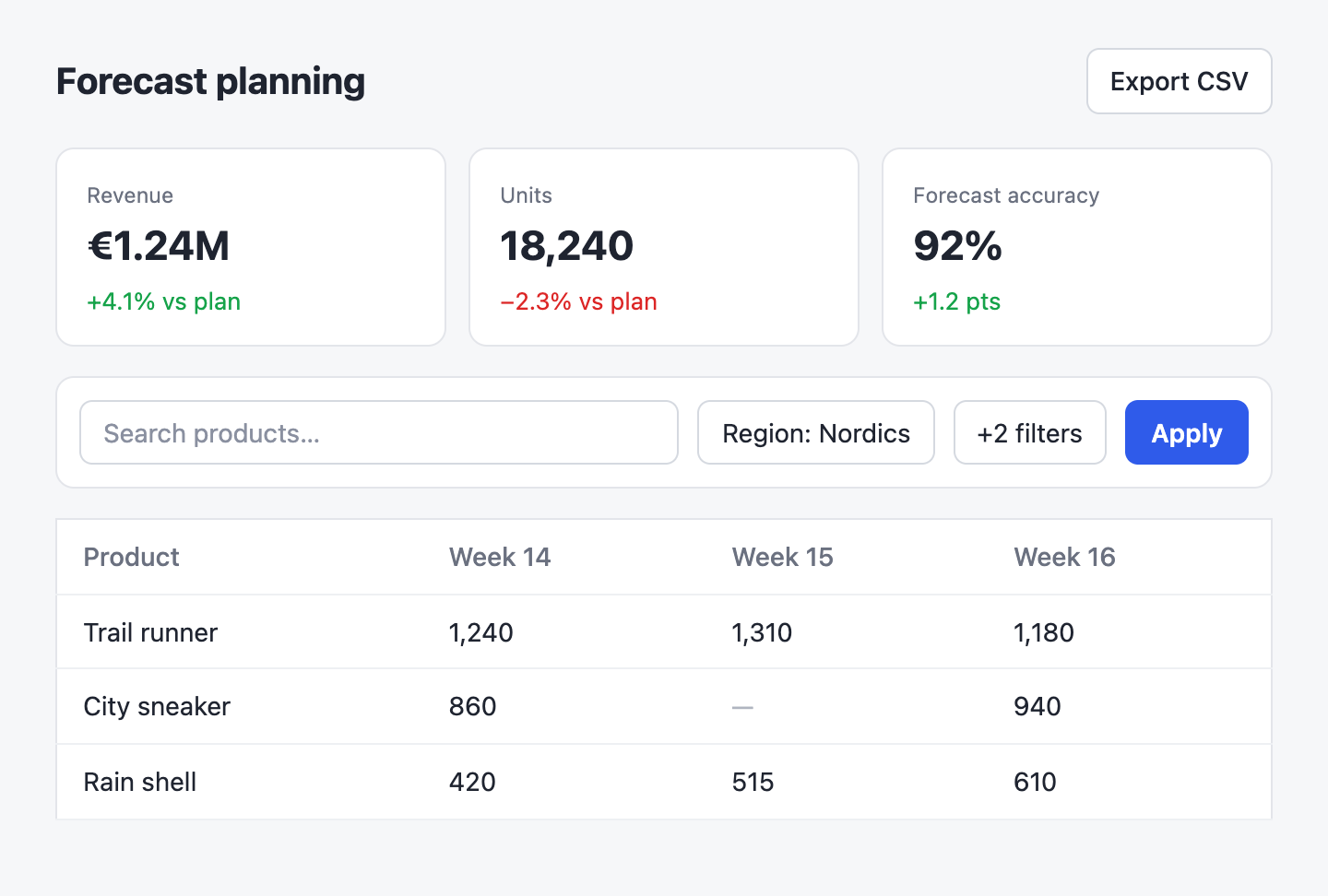 1
1- 1Export CSV sits in the page header.
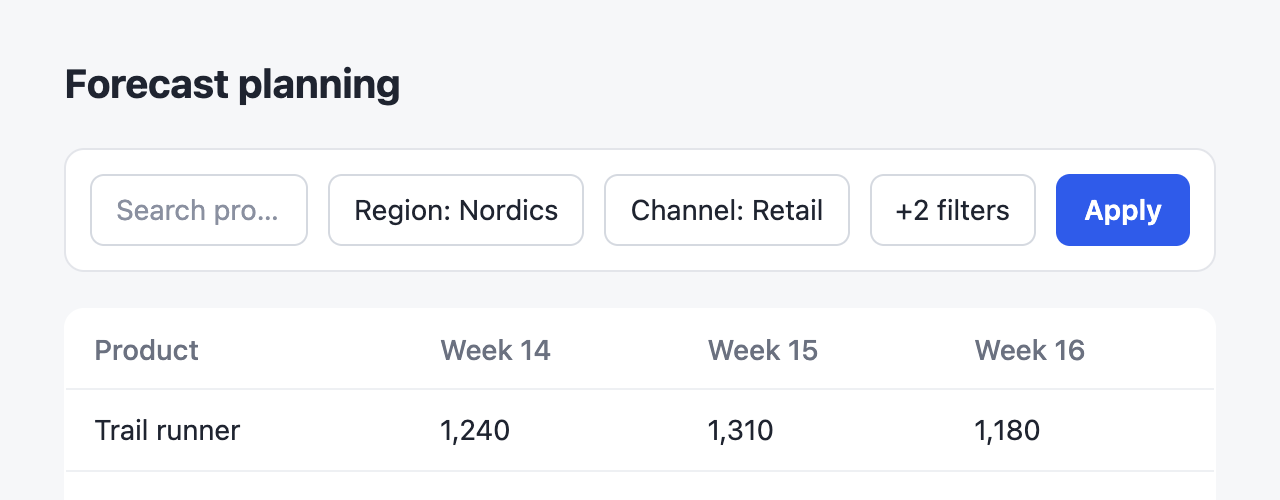 1
1- 1Open +2 filters and set the moon phase. The export includes only the rows the filters show.
1- 1Apply updates the table, and the export follows it.
::carousel{title="Exporting the pigeon data"}
:::screenshot{src="/dashboard.png" alt="Office correlations dashboard" title="1. Find the export"}
::::annotation{x=82.4 y=5.3 w=14.2 h=8.8}
**Export CSV** sits in the page header.
::::
:::

:::screenshot{src="/after.png" alt="Filter toolbar on one row" title="2. Set the filters" viewport="640x250"}
::::annotation{x=68 y=33.1 w=13.3 h=16 color="amber"}
Open **+2 filters** and set the moon phase. The export includes only the rows the filters show.
::::
:::

:::screenshot{src="/after.png" alt="Filter toolbar on one row" title="3. Apply" viewport="640x250"}
::::annotation{x=82.5 y=33.1 w=10.9 h=16 mark="check" color="green"}
**Apply** updates the table, and the export follows it.
::::
:::
::Each screenshot is a slide. Its title heads the slide, so the reader knows which step they're on, and the notes stay with their screenshot. A click zooms the current slide, and the zoomed view pages through the others.
When to use it
Use a carousel for a sequence: the steps of a flow, or one view at several sizes. For one view before and after a change, use ::compare, which is a two-column carousel already and continues the note numbers from one side to the other.
Two at a time
columns=2 shows two steps side by side on a wide page and one at a time on a narrow one:
::carousel{title="Exporting the pigeon data" columns=2}
:::screenshot{src="/dashboard.png" alt="Office correlations dashboard" title="1. Find the export"}
:::

:::screenshot{src="/after.png" alt="Filter toolbar on one row" title="2. Apply"}
:::
::Each slide sits on a soft panel as tall as the tallest one, so screenshots of different heights line up. Set --cc-surface: transparent and --cc-padding: 0 to drop the panel, as the carousel's Theming page shows.