comark-annotate
Components
screenshot, annotation, and compare, and the props each takes.
screenshot
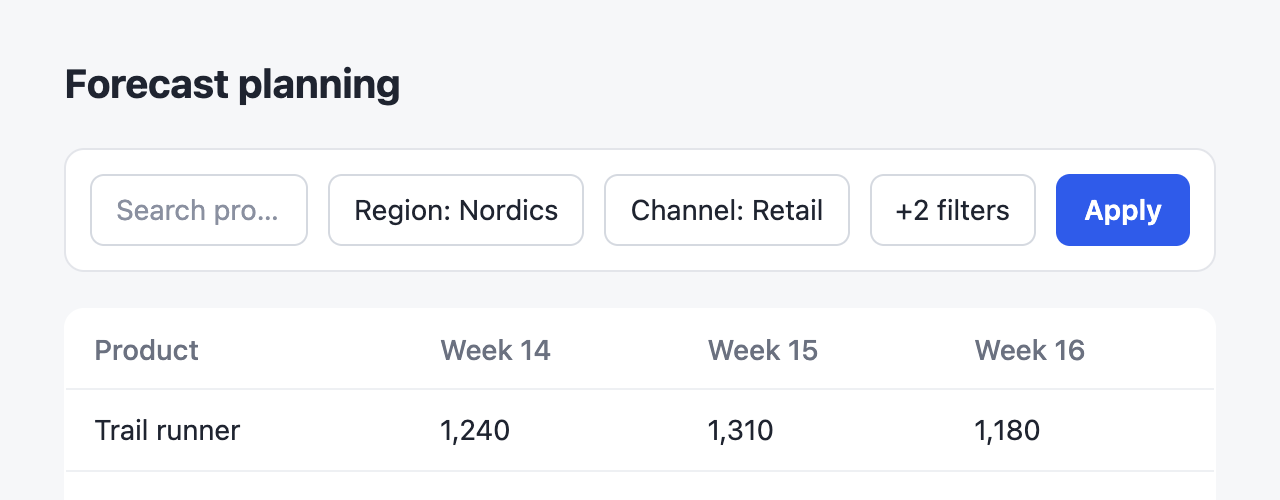
An image with marks on it. Other content inside the block becomes the caption.
 1
1- 1Extra filters collapse into +2 filters.
::screenshot{src="/after.png" alt="Filter toolbar on one row" title="After" href="https://pr42.preview.example.com/plan"}
:::annotation{x=67.9 y=34.8 w=13 h=14.2}
Extra filters collapse into **+2 filters**.
:::
::| Prop | |
|---|---|
src |
Image URL. Required. |
alt |
What the screenshot shows. Required. |
title |
Heading above the image, and the title of its zoomed view. |
href |
The page you captured, linked by its host next to the title. |
viewport |
Capture size in pixels, like 1440x900. A compare checks that both sides match. |
annotation
A mark on the screenshot and its note. The content is the note. Props can be inline, in a YAML props block, or bound with :x. Notes in the list under the image are numbered. Side notes sit beside or above the image and point with an arrow instead.
 1A
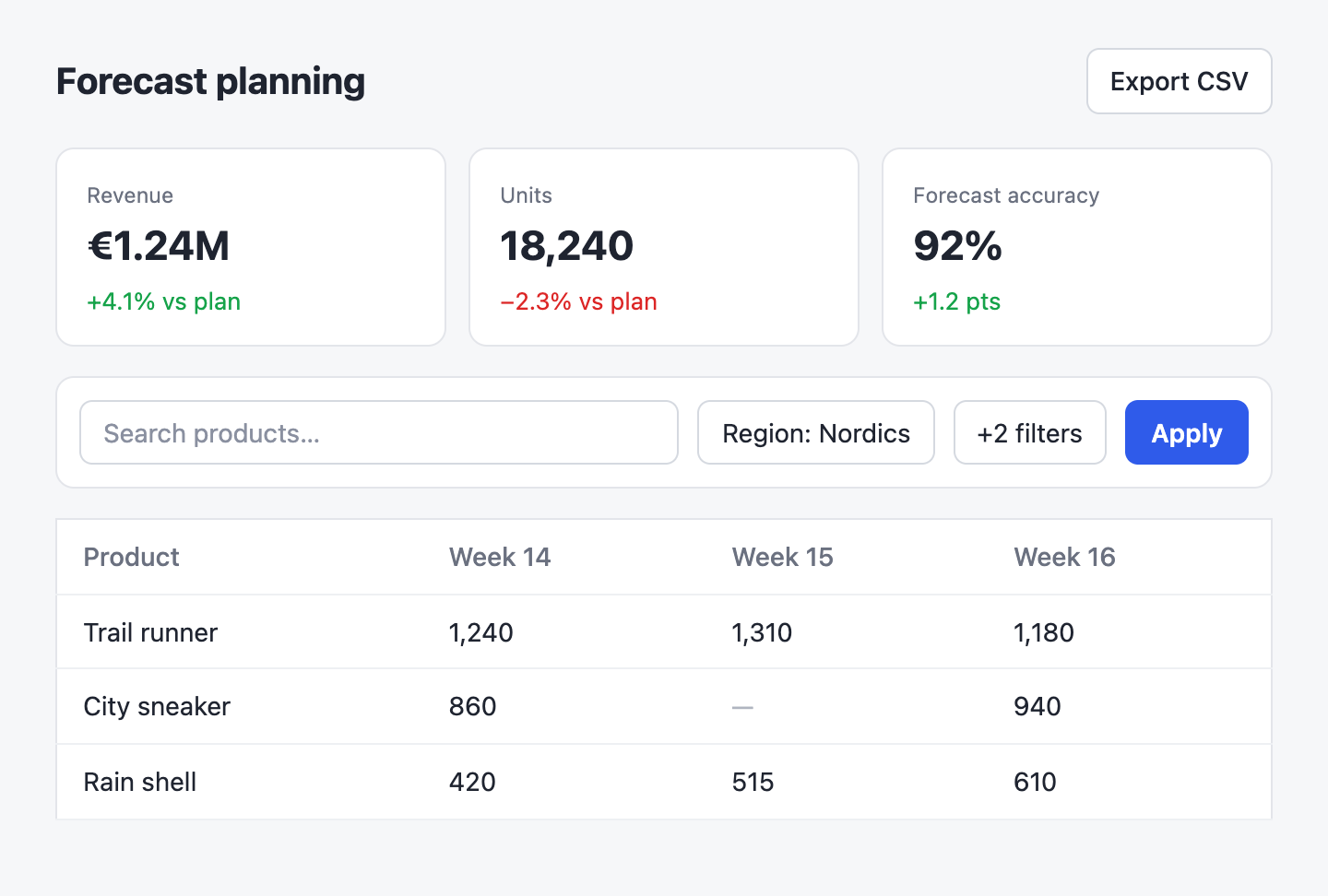
1A- 1Export CSV includes the filters you set.
::screenshot{src="/dashboard.png" alt="Office correlations dashboard"}
:::annotation{x=82.4 y=5.3 w=14.2 h=8.8 color="blue"}
**Export CSV** includes the filters you set.
:::

:::annotation{x=66.1 y=17 w=30.5 h=24.6 side="right" color="green"}
r now counts the office cat.
:::
::| Prop | |
|---|---|
x y w h |
The marked area, as percentages of the image: numbers from 0 to 100, without %. All four are required. |
mark |
box (default), circle, underline, highlight, cross, check, or none to let a side note's arrow do the pointing. none needs a side. Each mark wobbles a little differently, seeded by its box, so no two match and every render draws the same. |
side |
left, right, or top puts the note beside or above the image with an arrow. |
color |
blue (default) points something out, red flags a problem, amber a warning, green a fix, gray anything neutral. Each has a dark-mode value. A 3- or 6-digit hex color like #e11d48 works too, and its stamp gets whichever of a white or dark number reads better. |
compare
Two screenshots side by side, titled Before and After unless they set their own title. Numbers continue from one side to the other, and the pair stacks on narrow screens. Notes with side="left" or side="right" join the numbered list under their screenshot, since beside it they'd sit against the other one and shrink their own image; notes with side="top" stay above.
With mode="slider", the two screenshots share one frame: Before shows left of a divider and After right of it. Drag anywhere on the pair, or focus the handle and use the arrow keys, to move it; a click on the screenshots that doesn't drag zooms the pair. Use it when both screenshots show the same spot and the change is small, so the reader sees it at full width. Side notes become numbered notes in the list, since an arrow would cross the divider. Without the script, the two screenshots stack.
 1
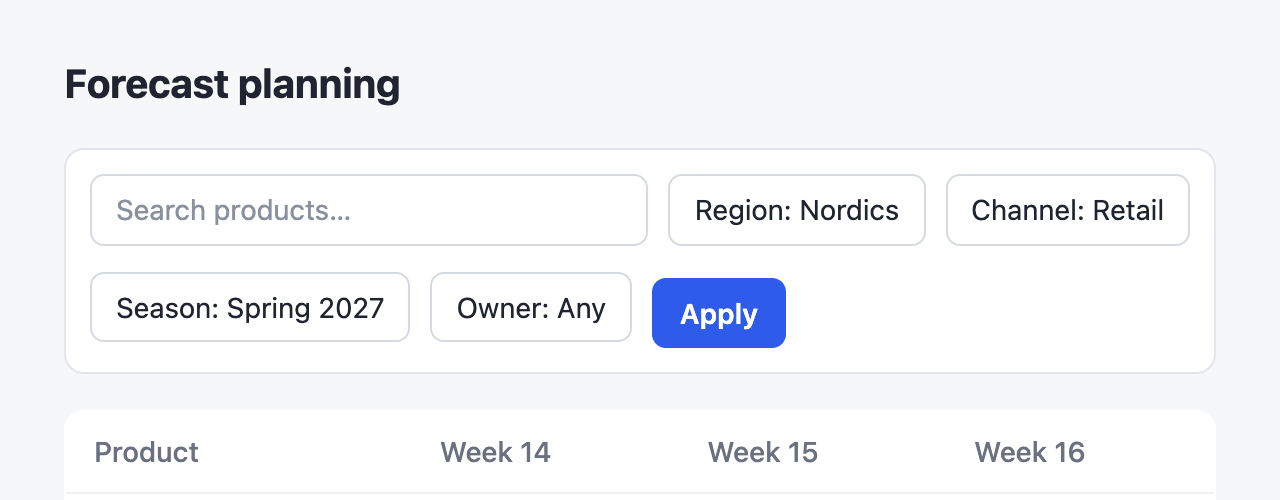
1- 1Apply sits lower than the chips.
2- 2Fixed.
::compare{title="Toolbar alignment"}
:::screenshot{src="/before.png" alt="Toolbar wrapping" viewport="640x250"}
::::annotation{x=22.4 y=50.4 w=13.3 h=20.6 mark="circle" color="red"}
**Apply** sits lower than the chips.
::::
:::

:::screenshot{src="/after.png" alt="Toolbar on one row" viewport="640x250"}
::::annotation{x=82.5 y=34.8 w=10.5 h=14.2 mark="check" color="green"}
Fixed.
::::
:::
::| Prop | |
|---|---|
title |
What the comparison shows, read out by screen readers. Defaults to "Comparison". |
mode |
columns (default) puts the screenshots side by side; slider lays them over each other with a divider to drag. |